How to add a new blog post
Blog posts use the stock WordPress Posts UI — no custom metabox required. The theme picks up categories, featured image, excerpt and content automatically and renders them in the site's design language.
Quick version (for someone who's done it before)
- Posts → Add New
- Enter the article title
- Write the body in the editor (headings, paragraphs, lists all supported)
- Set an Excerpt (Screen Options → Excerpt checkbox to enable) — this becomes the lede on the single post + the summary on cards
- Assign a Category (right sidebar)
- Set a Featured Image (right sidebar)
- Publish
Post immediately appears at /<slug>/, the blog index /blog/, and — if it's assigned to a category — the category archive /category/<slug>/. Here's the front-end payoff:
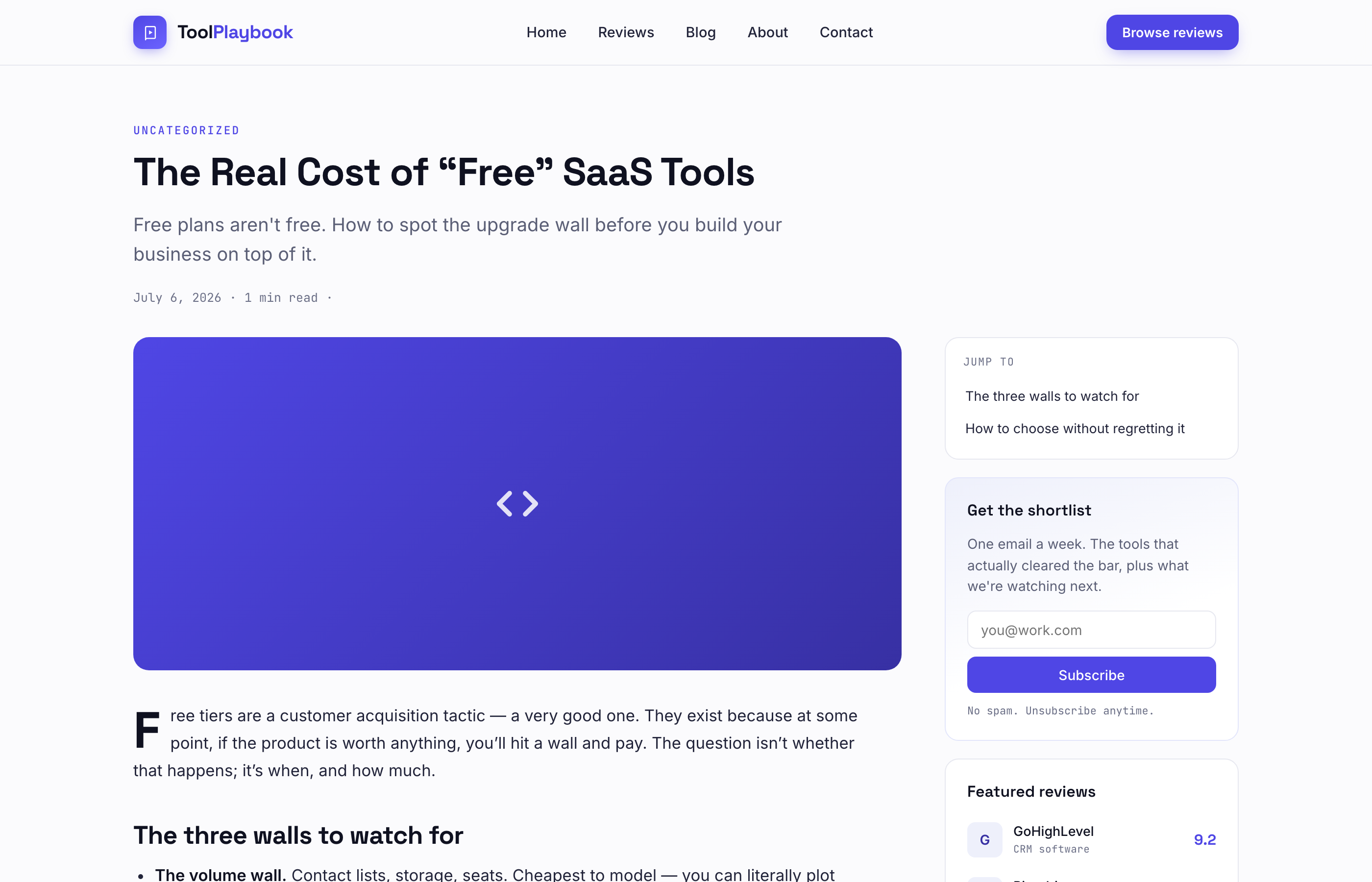
Notice the Jump to card in the top-right sidebar — those entries were pulled straight from the H2/H3 headings in the post body (see the section further down for the full explanation).
And the blog index:

Once you have a few posts published, the WP admin list view looks like this:

Field-by-field walkthrough
Posts → Add New — the standard Gutenberg editor. There's no custom metabox for blog posts (unlike reviews). The Meta Boxes panel that appears collapsed at the bottom is an empty container from WordPress core — safe to ignore.

Title
Used on the single-post hero (big left-aligned h1) and on cards across the site.
Body (main editor)
Rendered inside .post-prose. The first paragraph gets a drop-cap treatment automatically. Bold headings (H2, H3) inherit the site's serif type.
Excerpt
Two purposes:
- Cards — the excerpt is the summary text under the title on the blog index and related-posts row
- Single-post lede — if set, renders as a larger intro paragraph directly under the title (
.post-lede)
If you leave excerpt empty, WordPress auto-generates one from the first ~55 words. It's cleaner to write one yourself.
Category (right sidebar)
The theme uses the standard WordPress Categories taxonomy for blog posts (separate from Review Categories which are for the review CPT).

Primary category is the first non-uncategorized category (see tpb_post_primary_category() in inc/template-tags.php). It drives:
- The eyebrow pill on the single-post hero
- The glyph fallback if there's no featured image
- The category filter chip that shows as "active" when a visitor lands on the post
- The "Keep reading" row (up to 3 related posts from the same category)
Adding a new category: Posts → Categories → Add New Category. The category will auto-appear in the blog's filter chip row on the next page load. No theme edit needed.
Blog category chips — the primary six show first with their short labels (CRM, Email, SEO, Funnels, Forms, Project mgmt). Any additional category you create with posts assigned auto-appears at the end of the chip row.
Featured Image (right sidebar)
Used as the hero image on the single-post page and as the card thumbnail on the blog index / related-posts row. Recommended dimensions: 1200 × 675 (16:9). PNG or JPG both fine.
If no featured image is set, the theme falls back to a category-glyph icon on a tinted background — still looks intentional, just less unique.
Slug (right sidebar → Permalink)
Auto-generated from the title. Edit if you want something shorter or more SEO-friendly (e.g. best-crm-with-ai-2026 instead of best-crm-with-ai-in-2026-what-actually-helps).
Publishing checklist
Before hitting Publish:
- [ ] Title set
- [ ] At least one category assigned (otherwise "Uncategorized" is used and the eyebrow reads "Uncategorized")
- [ ] Excerpt filled (1–2 sentences — becomes the lede + card summary)
- [ ] Featured image set (or accept the category-glyph fallback)
- [ ] Slug reviewed
Once published, load /<your-slug>/ and check:
- Hero renders (title, category eyebrow, meta row, featured image or glyph)
- Body prose displays with drop cap on the first paragraph
- Sidebar shows newsletter card + top 3 reviews
- "Keep reading" row shows up to 3 related posts (only if others exist in the same category)
Jump-To sidebar (auto-generated table of contents)
Every single blog post gets a sticky "Jump To" card at the top of the sidebar. It's built automatically by reading the H2 and H3 headings in the post body — no configuration needed. As you scroll, the current section pill highlights in indigo.
Where the entries come from
The theme runs a filter on the_content when a single blog post is rendered. It scans the article body for <h2> and <h3> tags (in the order they appear), records their text and injects an anchor id on each one. The sidebar renders one link per heading using that recorded list.
That means: if the heading isn't an H2 or H3 in the editor, it won't appear in the Jump To sidebar. The theme doesn't parse H1 (there's only one — the post title) and it doesn't parse H4/H5/H6 (too fine-grained).
How to control what appears
- Use
H2for top-level sections (renders in the TOC as a full-weight link) - Use
H3for sub-sections (renders indented, in a lighter colour) - The TOC uses each heading's exact text — write clear, short headings
- The order in the TOC matches the order in the article
- To rename a section in the TOC, rename the heading in the editor — no separate field
Reviews vs. blog posts
The Jump-To sidebar is blog-post only. Reviews get a fixed sidebar (scorecard + CTA) because a review has a fixed structure (Overview → Scores → Pros/cons → Pricing → …). No H2/H3 parsing runs on the review CPT. If you write H2s inside a review's body, they render normally in the article but won't populate any sidebar.
When the TOC won't appear (on a blog post)
- If a post has zero
H2andH3headings, the TOC card is skipped and the sidebar just shows the newsletter + featured reviews (both scroll normally, nothing pins). - If you want a TOC on a post that doesn't have one, open the editor and add H2 headings to break the article into sections.
Anchor links
Each heading gets an auto-generated slug ID (e.g. "Where it works well" → #tpb-where-it-works-well). Anyone can link directly to a section by appending #tpb-<slug> to the post URL — useful for sharing.
If two headings have identical text, the second gets a -2 suffix to stay unique.
Subscribe band at the bottom of /blog/
The blog index page renders a full-width subscribe band at the bottom, matching the one on the homepage. Both spots share the same settings, so editing one updates the other.
- Edit at Appearance → Customize → Homepage Subscribe
- Fields: show/hide toggle, headline, subcopy, form shortcode, small note
- Setting the show/hide toggle to No hides the band in both places (homepage + blog index)
- See Newsletter setup for the full walkthrough with Fluent CRM
If you want a different form on the blog page than on the homepage (e.g. to track signup source separately), the cleanest path is to duplicate your Fluent Forms/Fluent CRM form, tag the copy differently, and — right now — the Customizer setting drives both spots with the same shortcode. Ask if you want that split into two separate fields later.
Sidebar (the newsletter + featured reviews column)
The sidebar renders next to every single-post body (stacks below on mobile at <900px).
Newsletter card:
- Title, blurb, and Fluent Forms shortcode are all editable via Appearance → Customize → Blog Sidebar
- If no shortcode is set, a styled placeholder form renders (visually identical, non-functional)
- To wire it up: install Fluent Forms → create a newsletter form → copy the shortcode (e.g.
[fluentform id="2"]) → paste into the Customizer field
Featured reviews mini-list:
- Renders the top 3 published reviews ordered by their Overall score (from the Review data metabox)
- Updates automatically as reviews are added or their scores change
- Each card links to the single-review page
There's no way to manually override the featured reviews list — it's score-driven. If you want a specific review to sit at the top, bump its Overall score higher than the current #1.
Category archives
Each category has its own archive at /category/<slug>/. The design matches the main /blog/ — same hero, same chip row, same card layout — only the filtered grid changes. This is intentional so the site feels cohesive when someone clicks through from a footer link.
The chip matching the current archive is highlighted as active.
Comments
Comments are enabled by default. Renders as .rv-block (the same treatment as review comments) — full-width card with a "Join the discussion" heading, subtle per-comment card treatment, and the standard WordPress comment form.
To disable comments globally: Settings → Discussion → uncheck "Allow people to post comments on new articles". To disable on a per-post basis: use the Discussion metabox (Screen Options → Discussion to enable it).

What the theme does NOT do
- No custom fields for blog posts — everything comes from stock WP (title, excerpt, categories, featured image, content).
- No "featured post" flag — the blog index picks the most recent post as the featured hero card. To rotate a specific post into the featured slot, publish (or re-publish) it more recently.
- No blog tags UI — WordPress tags are still available but no template renders them. Categories are the primary organization.