How to add a new review
The Review workflow is the core of ToolPlaybook. Publishing a review takes ~10-15 minutes once you know the fields. Every field the design uses is exposed in the Review metabox — no plugin required.
Quick version (for someone who's done it before)
- Reviews → Add New
- Enter the tool's name as the title (e.g.
GoHighLevel) - Assign at least one Review Category (right sidebar)
- Fill the Review data metabox — every field is optional but the more you fill in, the more the single-review page has to show
- Set a Featured Image — becomes the tool logo (square works best). Renders on the single review page and the reviews archive. Not shown on the homepage by design (the homepage cards are text-only).
- Publish
The review immediately appears at /reviews/<slug>/, the reviews archive /reviews/, and — if it's the highest-scored — the homepage hero (without the tool logo image).
Field-by-field walkthrough
Open Reviews → Add New. The main editor works like a normal WordPress post. Below the editor you'll see a Meta Boxes panel — click it to expand the Review data section. This is where all the review fields live.

Once expanded, the Review data metabox shows every field you can fill in. Not all are required — leave a section empty and the theme silently skips it on the front end.
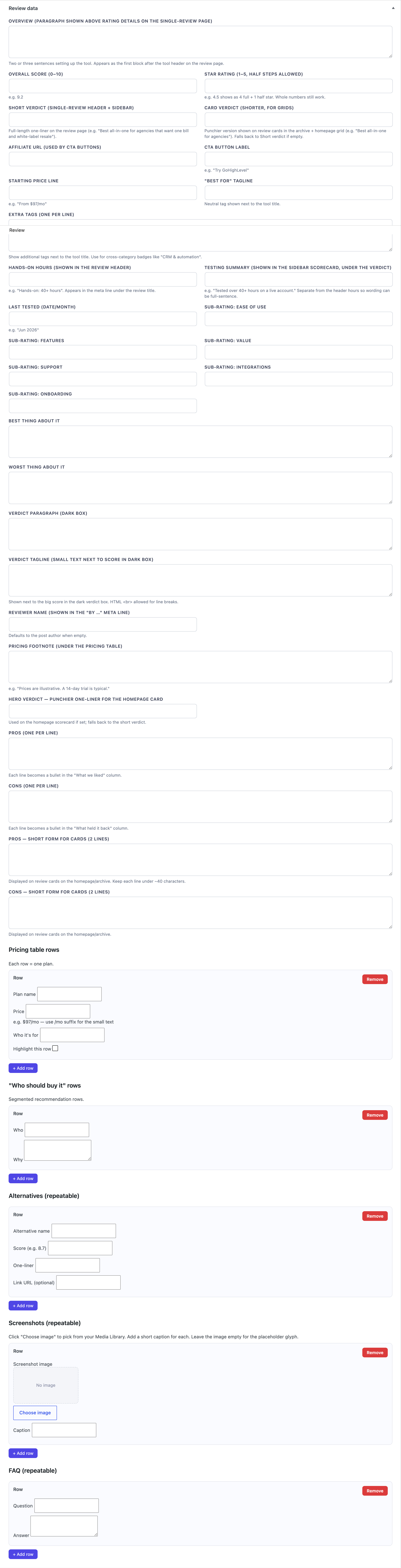
A cheat sheet of the fields, in the order they appear:
- Overview — 2–3 sentences that appear as the first block on the review page.
- Overall score (0–10) + Star rating (1–5, half steps allowed) — the two big numbers everywhere.
- Short verdict and Card verdict — one-liners for the header/sidebar and for cards on the archive.
- Affiliate URL + CTA button label — where the CTA links, and what the button says.
- Starting price line + "Best for" tagline — the two chips next to the tool name.
- Extra tags (one per line) — free-form pill tags shown alongside the taxonomy category.
- Hands-on hours + Testing summary + Last tested + Reviewer name — right-column meta.
- Six sub-ratings — Ease of use, Features, Value, Support, Integrations, Onboarding (each 0–10). Drive the animated horizontal bars.
- Best thing about it / Worst thing about it — the two coloured one-sentence cards near the top.
- Pros / Cons (one bullet per line) + optional short-form lists for cards.
- Pricing rows (repeatable) — Plan name, Price, Who it's for, Highlight this row.
- "Best for / skip it if" rows (repeatable) — Who + Why.
- Alternatives (repeatable) — Name, Score, One-liner, Link URL.
- Screenshots (repeatable) — Attachment ID + Caption.
- FAQ (repeatable) — Question + Answer, renders as the accordion at the bottom.
Basic identity
- Title — the tool's name. Used everywhere (hero, cards, breadcrumb).
- Excerpt (Screen Options → Excerpt checkbox to enable) — the "Overview" paragraphs on the single-review page.
- Post content (main editor) — the "Full review" deep-dive paragraphs (use bold headings like
Setup & first impressions.at the start of each paragraph).
Scores & headline text
- Overall score — number 0-10, one decimal (e.g.
9.2). Drives the big score everywhere. - Star rating — integer 1-5.
- Short verdict — one-liner shown on cards + sidebar (e.g. "Best all-in-one for agencies that want one bill and white-label resale").
- Hero verdict (optional) — punchier version for the homepage hero if the short verdict is too long (e.g. "Best all-in-one for agencies that want one bill.").
- Verdict paragraph — full paragraph shown in the dark verdict box at the bottom of the review.
- Verdict tagline — small text next to the big score in the dark box. HTML
<br>allowed for line breaks.
Meta on the review header
- "Best for" tagline — neutral pill next to the tool name (e.g.
Best for agencies). - Extra tags — one per line. Free-form tags shown alongside the taxonomy category (e.g.
CRM & automation). - Hours tested — right-column meta (e.g.
Hands-on: 40+ hours). - Last tested — right-column meta (e.g.
Jun 2026). - Reviewer name — right-column meta (defaults to the post author's name if blank).
Sub-ratings (drive the animated bars)
Six values, each 0-10:
- Ease of use
- Features
- Value
- Support
- Integrations
- Onboarding
These render as horizontal bars that animate on scroll — the bar width is value / 10 * 100%.
Best / worst short takes
- Best thing about it — one-sentence green card
- Worst thing about it — one-sentence red card
Pros / cons
- Pros — one bullet per line. Displays in the "What we liked" column (all lines shown).
- Cons — same, "What held it back" column.
- Pros — short form for cards (optional) — 2 lines. Used on the review cards on the homepage/archive if provided. If empty, the first two full-form pros are used.
- Cons — short form for cards (optional) — same.
Pricing table
Pricing rows is a repeater. Click + Add row to add each plan:
- Plan name — e.g.
Agency Unlimited - Price — plain text. To render
$97big with/moin smaller text, use format$97/mo. - Who it's for — one-line description
- Highlight this row — check to give the row the indigo background (the "featured" pricing tier)
Pricing footnote (optional)
Small grey paragraph shown under the pricing table (e.g. "Prices are illustrative. A 14-day trial is typically available; annual billing usually discounts ~2 months.").
"Best for / skip it if" rows
Repeater. Each row:
- Who — audience label (e.g.
Marketing agencies,Skip it if…) - Why — explanation
Alternatives
Repeater. Each entry:
- Alternative name
- Score — e.g.
8.7 - One-liner — short description
- Link URL (optional) — if set, the card becomes clickable
Screenshots
Repeater. Each entry:
- Image attachment ID — the ID of an uploaded image in Media Library. Leave empty for a placeholder glyph.
- To find an image's ID: Media Library → click the image → the URL contains
item=<ID>.
- To find an image's ID: Media Library → click the image → the URL contains
- Caption — short label under the screenshot

FAQ
Repeater rendered as the accordion at the bottom of the review. Each entry:
- Question
- Answer
Affiliate CTA
- Affiliate URL — where the CTA buttons link to. The theme auto-adds
rel="nofollow sponsored noopener"andtarget="_blank". - CTA button label — e.g.
Start a GoHighLevel trial.
Homepage ordering
The homepage's hero scorecard and "Top-scored tools right now" grid both sort by Overall score (descending) automatically. Raise the Overall score on a review to bump it up. No manual ordering field to set.
Publishing checklist
Before hitting Publish:
- [ ] Overall score set (otherwise the hero/card looks broken)
- [ ] At least one review category assigned
- [ ] At least 2 pros + 2 cons (they show on cards)
- [ ] Verdict long paragraph set (shows in the dark box)
- [ ] Affiliate URL set (otherwise the CTA links to the homepage)
- [ ] Featured image set (tool logo)
Once published, load the URL /reviews/<your-slug>/ and check that every section renders. If a section is empty (e.g. no FAQ), the theme silently skips it — nothing looks broken.
How the homepage picks a "featured" review
The hero scorecard automatically shows the review with the highest Overall score. If you publish a new review that scores higher than the current featured one, the hero updates on the next page load.
The "Top-scored tools right now" grid and the "Featured reviews" sidebar on blog posts both use the same score-DESC ordering. There is no manual override — score is the only lever.
What a published review looks like
Here's the front-end payoff of everything you filled in above — a real single review page:
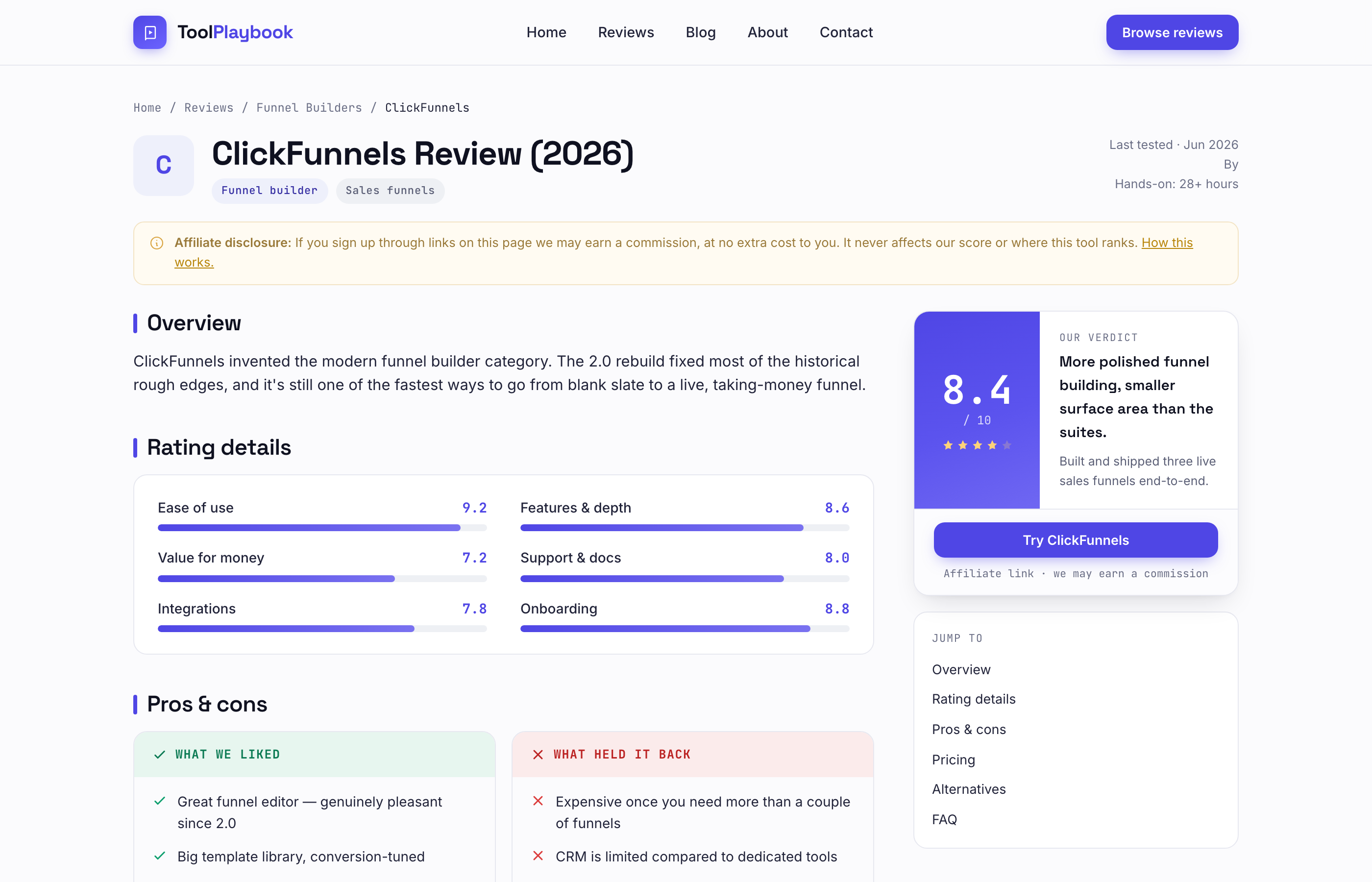
Notice where each field lands: title + Best-for tag chips at the top, Overview immediately below the affiliate disclosure, Rating details bars (each fed by a sub-rating), pros/cons columns, the scorecard sidebar on the right (with Overall score + CTA button), and the Jump-To sidebar under it.
What about the "Jump To" sidebar?
Reviews have a fixed Jump-To sidebar with six hard-coded anchors — not the H2/H3-driven one used on blog posts. The links are:
- Overview →
#overview - Rating details →
#ratings - Pros & cons →
#proscons - Pricing →
#pricing - Alternatives →
#alts - FAQ →
#faq
These match the fixed sections the review template renders (in that order). You don't need to add anchors or headings in the editor — the template handles them.
If you write H2s inside a review body, they render normally in the article but do not get added to the Jump-To sidebar. The dynamic H2/H3 TOC is a blog-post-only feature — see the Blog guide.
Reviews archive (front-end)
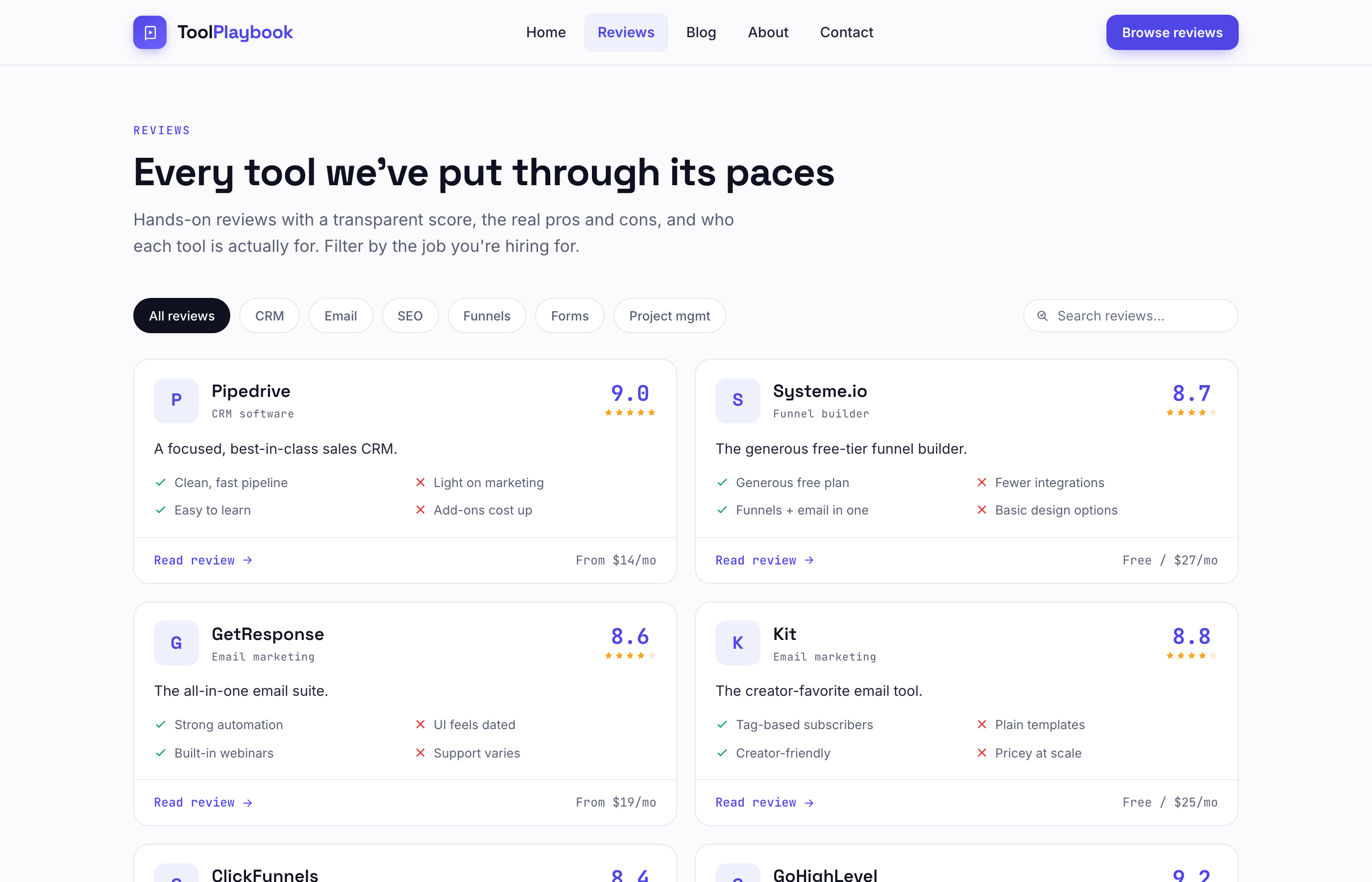
Once you have a few reviews published, the /reviews/ archive gives visitors a filter row + card grid ordered by Overall score:
Managing published reviews
Reviews → All Reviews — the standard WordPress list table, with the tool name, category, and publish date as columns.

Managing review categories
Reviews → Categories — same UI as blog categories. Six terms are seeded on theme activation:
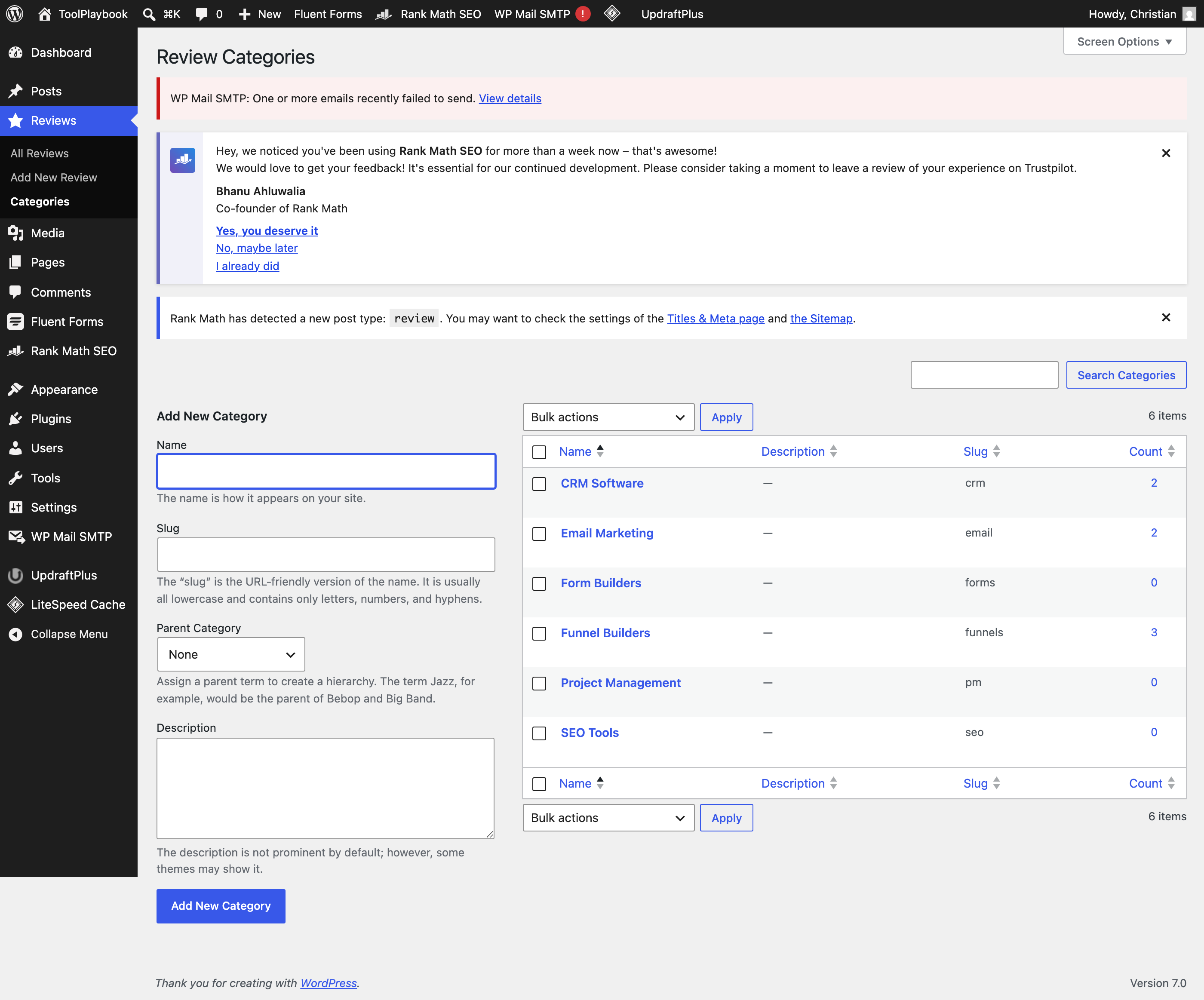
- CRM Software (
crm) - Email Marketing (
email) - SEO Tools (
seo) - Funnel Builders (
funnels) - Form Builders (
forms) - Project Management (
pm)
You can add, rename, or delete categories freely — the archive URL is /reviews/category/<slug>/.